


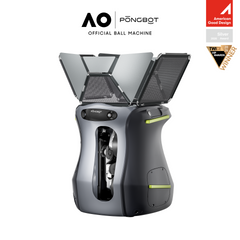
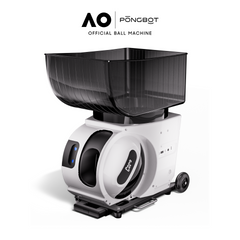
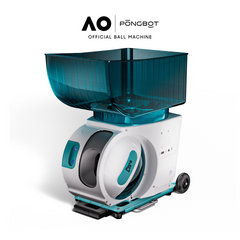
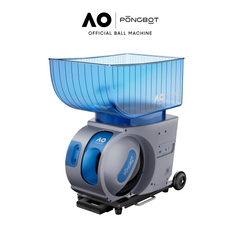

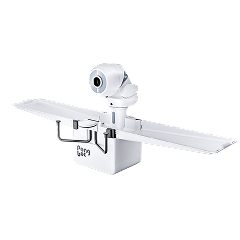


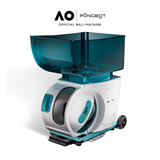
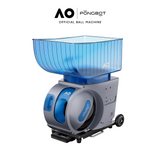

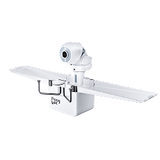




This PongBot Pace S setup guide walks you through every step, based on the official PACE S Series User Manual (V1.2).
You'll also find the light and buzzer meanings, common error codes, battery care tips, and how to run your first drill.
- Fully charge the portable battery before each use. The charger light turns green when it's full.
- Never install or remove the battery while the machine is switched on.
- Your warranty starts the first time the machine connects to the app.
- The remote usually pairs on its own after the machine is activated.
- Recharge the battery about every three months during storage to keep warranty coverage.
What's in the Box (PongBot Pace S)

The Pace S ships with everything you need to start, except balls and a USB wall charger.
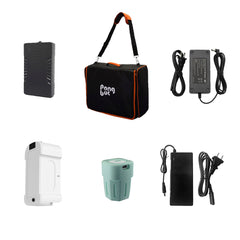
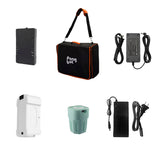
The box includes:
- 1 × Pace S machine, with one portable battery included
- 1 × remote control
- 1 × adapter (battery charger)
- 1 × cable
What You'll Need
- A phone or tablet with the PongBot Tennis app, Bluetooth, and location services turned on.
- An internet connection while using the app.
- A USB wall charger. The remote charges over USB Type-C, but the manual notes no wall charger is included for it.
- Tennis balls. PONGBOT recommends pressureless tennis balls for daily training.
PongBot Pace S Setup Guide for First-Time Users
Step 1. Charge the Battery and Remote
Charge the portable battery fully before your first session. The manual recommends a full charge before every use.
- Remove the battery from the machine's battery slot.
- Plug the charger into a wall outlet. It works with 100 to 240 V, 50/60 Hz power. Use a travel plug adapter if needed.
- Connect the battery to the charger. The charger light shows red while charging.
- Wait for green. When the charger light turns green, the battery is full. Unplug it.
- Charge the remote. Use the included Type-C cable and your own USB wall charger. It's full when the screen shows 100%.
Reading the Battery Lights
Press the battery's power button once (while it's off) to check the charge level.
| Lights on | Battery level |
|---|---|
| 4 lights | 76% to 100% |
| 3 lights | 51% to 75% |
| 2 lights | 26% to 50% |
| 1 light | 0% to 25% |
Source: PONGBOT PACE S Series User Manual V1.2.
Step 2. Install the Battery and Ball Hopper
With the machine switched off, install the battery, then set up the hopper.
- Battery. Slide it into the battery holder in the direction shown in the manual. Push until you hear a click, which means the buckle is locked. To remove it, press the textured part of the buckle.
- Ball hopper. Separate the hopper from the machine, rotate it upright, and fit it on top. Make sure the curved (arc) end faces forward.
Step 3. Download the App and Create an Account
The Pace S runs through the PongBot Tennis app, available on Google Play and the Apple App Store. You can also find links on the PONGBOT app download page.
- Open the app and tap Register New Account.
- Enter your email and tap Send Code.
- Enter the verification code from your inbox.
- Set a password and tap Confirm.
If the app asks to turn on Bluetooth or location services, allow both. The manual says these are needed to find and connect to the machine.
Step 4. Power On and Connect to the App
Connecting to the app for the first time also activates your machine.
- Turn the machine on. Slide the power switch to the "|" position. You'll hear one short and one long beep.
- Turn on Bluetooth and location on your phone or tablet.
- Add the device. In the app, tap Devices at the bottom, then the + icon at the top right.
- Pick your model. Select the Pace S series, and the app will search for nearby machines.
- Connect. Select your machine, tap Connect, then tap Confirm.
When connected, the side light on the machine glows steady blue, and the buzzer gives two quick beeps.
Step 5. Pair the Remote Control
After activation, the remote usually pairs with the machine automatically. You're ready when a machine icon appears in the top-left corner of the remote's screen.
If the Remote Doesn't Pair
- Enter pairing mode. With the machine on, quickly press the connection key on the left-side panel twice. The light changes from slow to fast blue flashing.
- Wake the remote. Hold its power button for 2 seconds, then press the connection button.
- Confirm. Press Next Page and wait for pairing to finish.
- Finish. When the machine icon appears, press Complete, then Enter to open the control page.
Step 6. Update the Firmware
Install updates before your first full session. The app checks for new firmware when the machine is connected.
- Keep the machine connected and open the app's main screen.
- If an update pop-up appears, tap Upgrade. You can also go to Settings then Firmware Upgrade.
- Follow the prompts and wait for it to finish. A slow white flash means it's updating, and steady white means it worked.
The remote updates through the app too. Add it under Devices as a P-Control S, connect, and tap Upgrade if a new version is available.
Step 7. Choose Where to Place the Machine
The Pace S supports six placement positions. Select the matching position in the app or remote so drills land where they should.
| Position | Where to place it | Left-right swing range |
|---|---|---|
| 1 (default) | Center of the baseline | 34° (−17° to 17°) |
| 2 | Right side of the baseline | 34° (−25° to 9°) |
| 3 | Left side of the baseline | 34° (−9° to 25°) |
| 4 | Middle of the center line (service T) | 34° (−17° to 17°) |
| 5 | Right ball-tossing position | 34° (−25° to 9°) |
| 6 | Left ball-tossing position | 34° (−9° to 25°) |
Source: PONGBOT PACE S Series User Manual V1.2, Product Specifications. Elevation range is 40° (10° to 50°).
- NTRP Drills only work from the center of the baseline.
- Custom drills built on the remote also require the center baseline position.
- In the app, tap See Position Details to view placement tips for each spot.
Step 8. Run Your First Drill
Start with a preset drill to get a feel for the machine. In the app, open Programmed Drills.
- Set the machine position to match where it sits on court.
- Pick a drill type. Classic Drills are grouped as Basic, Combined, and Complex. NTRP Drills are sorted by skill level.
- Choose a difficulty. Star ratings change speed, spin, and feed rate.
- Set your dominant hand so forehand and backhand zones are correct.
- Choose Sequential or Random. Sequential repeats balls in order. Random gives each ball an equal chance.
- Set the length. Choose a time in minutes or a number of groups.
- Tap Start. Use Skip to cut the countdown, or Stop to end the session.
Want more time to get ready? Turn on Serve Count Down under Settings, then Preferences.
Fine-Tune Landing Spots With Calibration
If balls land off target, use Calibration to adjust each ball in a drill.
- Drop point moves the ball left or right.
- Depth moves it closer or farther. A positive number pushes the ball deeper, away from the machine.
- Feed changes how often balls are served, in seconds.
- Tap Combo Test to check your changes, then Save.
Build Your Own Drills
In the app's Custom Drills, you can add up to 45 single balls per drill. For each ball, set the spin type, speed, spin, depth, landing point, feed rate, and repetitions.
You can also share drills to the Drill Library or download drills other players have shared.
Using the Remote Without Your Phone
The remote can run the machine on its own, which helps when you have no signal or don't want your phone on court.
- Programmed drills. The remote stores 300 preset drill groups.
- Synced drills. You can sync up to 30 custom drill groups from the app to the remote.
- Remote custom drills. Build quick drills with up to 6 single balls, using the center baseline position.
- Live adjustments. During a drill, use the up and down keys for depth and the left and right keys to move balls sideways.
- Dual control. You can start with the remote and stop with the app, or the other way around.
Offline Mode
If the app can't hold a Bluetooth connection after the machine has been added once, offline mode still lets you view and set most functions. The manual's offline table lists which features are supported, so check it if something is unavailable.
Switching to Padel Mode
The Pace S also works for padel. In the app, go to Settings and change the sports mode from Tennis to Padel Tennis. Padel currently uses custom drills, which you build and save yourself.
Light and Buzzer Guide
The machine uses lights and beeps to show its status. Here are the ones you'll see most.
| Signal | What it means |
|---|---|
| Front light, steady purple | Power-on self-test |
| Front light, steady blue | Initializing |
| Front light, slow yellow flash | Standby, ready to use |
| Front light, slow green flash | Serve countdown running |
| Side light, slow blue flash | Not connected to the app or remote |
| Side light, fast blue flash | Bluetooth pairing mode |
| Side light, steady blue | Connected |
| Steady red light | Cabin door is open |
| Slow red flash | Machine fault |
| One short beep | Ready to serve |
| Two short beeps | Connected, or a warning such as out of balls or low battery power |
| Three short beeps | Machine fault |
Source: PONGBOT PACE S Series User Manual V1.2. You can change LED and buzzer modes under Settings, then Preferences.
Common Error Codes and Fixes
If the app shows a code, use this table as a first step. Contact PONGBOT support if the problem continues.
| Code | Meaning | What to do |
|---|---|---|
| 1003 | Out of balls | Refill the hopper |
| 1004 | Settings need more battery power | Charge or swap the battery, or lower the settings |
| 2001, 2002 | Control problem, often a stuck ball | Open the cabin door, remove stuck balls, and re-initialize |
| 2007 | Ball jam | Check the channel for stuck balls |
| 2010 | Cabin door won't open | Power off and try again. Gently pull the hatch about 5 seconds after tapping open. |
| 2011 | Low battery | Charge or replace the battery |
| 2012 | Feed motor overload | Clear any jam at the feed point, then re-initialize |
| 2006, 2008, 2009 | Sensor or control error | Power off and re-initialize |
Source: PONGBOT PACE S Series User Manual V1.2, Error Code Definition. The manual lists more codes for internal parts.
For more help, visit the PONGBOT Support & Help Center.
Battery Care and Storage
Good battery habits keep your sessions long and protect your warranty.
- Charge before each use with the official PONGBOT charger.
- Recharge every three months if the machine sits unused. The manual says batteries left without charging for over three months are not covered by warranty.
- Expect less power in the cold. Below 5°C (41°F), battery capacity and top performance drop.
- Store indoors. Don't leave the machine or battery outside, or near heaters, ovens, or other heat sources.
- Pack it up after play. Empty the hopper, remove it, and reattach it to the machine with the curved end facing forward.
- Move it the easy way. Pull out the bottom handle and roll it on its wheels, or lift with both side handles.
Safety Checklist Before Every Session
- Check the battery levels of the machine and remote.
- Make sure the battery is clicked in and the cabin door is closed.
- Watch for warning lights after power-on.
- Stay out of the area directly in front of the ball outlet at close range.
- Avoid rain, strong wind, snow, fog, or extreme heat.
- Use good lighting if you play at night.
- Use only original PONGBOT accessories.
Practical Tips for New Pace S Owners
- Start slow. Begin with Basic drills at a low star rating, then build up.
- Calibrate once per court. Small adjustments make drills land where you want.
- Sync favorite drills to the remote. Then you can train without your phone.
- Use the right balls. PONGBOT recommends pressureless balls and advises against low-compression balls, which may jam or feed unevenly.
- Keep the manual handy. The latest version is on PONGBOT's operation manual page.
Common Setup Mistakes
- Inserting the battery with the power on. Always switch off first.
- Facing the hopper the wrong way. The curved end goes to the front.
- Leaving Bluetooth or location off. The app can't find the machine without them.
- Choosing the wrong placement position. Drills will land off target.
- Skipping firmware updates. Updates can fix issues and add features.
- Storing a flat battery for months. This can affect battery health and warranty coverage.
Frequently Asked Questions
How do I connect the Pace S to the app?
Turn the machine on by sliding the switch to "|", then turn on Bluetooth and location on your phone. Open the PongBot Tennis app, tap Devices, then the + icon, and select the Pace S series. Choose your machine, tap Connect, then Confirm. The side light turns steady blue once it's connected.
Why won't my remote pair with the Pace S?
The remote normally pairs automatically after activation. If it doesn't, double-press the connection key on the machine's left panel until the light flashes fast blue. Then hold the remote's power button for 2 seconds, press its connection button, and press Next Page. When the machine icon appears, press Complete.
When does the Pace S warranty start?
According to the user manual, the warranty starts on the activation date. Activation happens automatically the first time the machine connects to the PongBot Tennis app. Keep your battery charged at least every three months in storage, since the manual says neglected batteries aren't covered.
How do I clear a ball jam?
Stop the machine and open the cabin door using the app or remote. Never force the door or reach inside while it's running. Remove any stuck balls, close the door, and confirm to re-initialize. Error codes 2001, 2002, 2007, and 2012 often point to a jam.
What balls should I use in the Pace S?
PONGBOT recommends pressureless tennis balls for daily training. Standard pressurized and ITF-approved balls also work, as do padel balls in padel mode. PONGBOT does not recommend low-compression balls, since they may cause jams or uneven feeds.
You're Ready to Train
This PongBot Pace S setup guide covers the essentials: charge, install the battery and hopper, connect the app, pair the remote, update firmware, and pick a position. Start with simple drills, calibrate for your court, and keep the battery charged between sessions.

80 mph speed, 60 rps spin, 396+ preset drills, and up to 8 hours of play.
$999.99 $1,699.99

Pressureless core for consistent bounce, with a carrying bag for storage.
$119.99 $199.99

Spare batteries, chargers, remotes, and the T Serve S for Pace machines.
From $69.99
Keep Reading


